Deliverect

Benefits of Deliverect

  • No more manually entering orders into the POS system—saves time and reduces errors
  • Easy synchronization between gn Office and Deliverect—products (including names, descriptions, allergens, and photos) & menus
  • Transfer of pickup and delivery orders to gn Office, directly into the POS
  • system
  • Delivery fees, tips, service charges, and discounts from delivery platforms are automatically applied
  • Option to automatically accept orders with a pre-approval period
  • All sales are automatically processed through the POS system
  • Products can be blocked for delivery platforms from within gn Office (depending on the provider)

Setup – Deliverect

Prerequisites for using Deliverect

What requirements must you meet to use Deliverect? A distinction is made between requirements within Gastronovi Office and external requirements.

Requirements within Gastronovi

  • The POS System module must be purchased and set up and functioning properly
  • The Ordering System module must be purchased and set up and functioning properly
  • A paid subscription to the Deliverect integration

External Requirements

  • A paid account with Deliverect: Pricing
  • Contracts/accounts with the respective delivery platforms to be integrated ** e.g., Lieferando, Wolt, or Uber Eats
To use Deliverect in conjunction with Gastronovi Office, in addition to setting it up in the Deliverect front end, you’ll also need to configure some settings and make preparations in the Gastronovi back office.

First, the integration must be enabled before you can activate and set it up. You can then configure all settings related to using the integration in Gastronovi Office and prepare and customize your information and data—including reservation settings, products, and menus—so that you can successfully connect and use Deliverect.

Enabling the Integration

To use the Deliverect integration in Gastronovi Office, the integration must be enabled. Enablement is handled by Gastronovi’s sales team. Please contact the general sales department or your designated contact person.

Integration Settings

Location

Find out here which location is linked to your Gastronovi Office account. If necessary, you can reset the location here so you can link a new account.

Synchronize Data

There is no automatic synchronization between gn Office and Deliverect. This process must currently always be performed manually.

Configure status transmission via the kitchen monitor

Select whether and which information regarding an order’s status should be transmitted to Deliverect via the kitchen monitor.

Set Up Deliverect Queue

With this feature, Gastronovi Office can retrieve an order’s order number via Deliverect and set it as the queue number for the corresponding transaction in the front office.

Notification for Canceled Orders

If an order is canceled or if Deliverect reports that an order—which has already been processed as a sale in Gastronovi Office—has been canceled, the order is not automatically canceled. In this case, the system will send you an email notifying you of the cancellation.

Deactivate customers after a defined period

All Deliverect orders typically include customer data, as this is necessary for delivery or is used when communicating with delivery companies. You can specify the time period after which this customer data will be deactivated.

Reservation Settings

Before you can use Deliverect, you must configure some settings in the reservation settings.

Enable Pickup & Delivery

First, enable pickup and/or delivery.

Automatic Acceptance

Also enable automatic acceptance for the respective services (pickup and/or delivery) you want to offer, and set the appropriate lead time for production.

Pickup

Delivery

You can find more information about reservation settings for the ordering system here: Ordering System > Setup > Settings & Widget

Products & Menus

Publish Menus

Specify which food and beverage menus you want to make available for pickup and/or delivery.

You can also specify which menus should be explicitly transferred to Deliverect. This setting is configured via the Deliverect integration in the Back Office. If you do not specify any menus, all menus that are enabled for pickup and delivery will be transferred.

Keep in mind that only one complete menu can be approved at a time. If necessary, create a separate menu for pickup and/or delivery, which you can then approve.

Product Images

If you want to display product images online, you should follow the guidelines below to ensure that the images are displayed correctly in most cases:

Guideline Recommendation
Dimensions 1920 x 1080 px
Size Max. 4 MB (Here, the smaller the better—it saves data)

You can find more information about menus in relation to the ordering system here: Ordering System > Setup > Menus

Frontend Setup – Deliverect

These steps are configured by default as part of the Deliverect onboarding process.

Logging In to the Frontend

You can access the Deliverect frontend via an external Deliverect website. There, you’ll need to log in with your credentials to access your Deliverect account.

Create & Manage Accounts

In the Account section, you can create new accounts or edit existing ones. Before you can successfully use the Deliverect integration in Gastronovi, you must have created at least one account.

Create & Manage

Location In the Location section, you can### create a new location or edit an existing one. Each account must have at least one location, which is then linked to your Gastronovi account.

Register a Location

Once you’ve created an account and set up a location, you can now link it to your Gastronovi account by registering the location. (The link is established via the Company ID of your gn account, which we send to Deliverect as part of the onboarding process)

Setup checklist

  • Have you subscribed to the paid Deliverect integration?
  • Have you entered your Company ID in Deliverect?
  • Has the integration been verified? (Deliverect’s “Register” function)
  • Have you enabled pickup and/or delivery in Gastronovi?
  • Have you reviewed the reservation settings for pickup and/or delivery? (including automatic acceptance & acceptance lead time)
  • Have you published at least one menu for pickup and/or delivery?
  • Have you synchronized data with Deliverect?
  • Have you created menus in Deliverect?

FAQ – Frequently Asked Questions

How can I view my Location ID?

You can find the Location ID in the integration within the Gastronovi Back Office (the Location ID corresponds to the Company ID).

What happens to newly created items?

Newly created items from the gn Office are only available in Deliverect after they have been added to the menu and manually synchronized.

Are additives maintained in Gastronovi Office transferred to the recipes?

Yes, provided they are properly maintained, the additives are transferred to Deliverect and displayed there.

Can items be created directly in Deliverect?

Yes, this is technically possible. However, it is strongly discouraged. New items must always be created in gn Office and then synchronized.

If items are created directly in Deliverect but do not exist in gn Office, this situation usually results in orders being canceled entirely.

What happens to items in Deliverect when they are edited in gn Office?

Changes to products and menus are only transferred to Deliverect via manual synchronization in gn Office. There is no automatic update.

What happens to items in Deliverect when they are removed in gn Office?

If you remove products or entries from a menu that has been transferred to Deliverect, these changes are not transferred via manual synchronization (unlike edited entries). To update the data in this case, please use the Force Synchronization feature.

Can items be edited directly in Deliverect?

It is possible to edit items that are synchronized with Deliverect. However, if items are edited in Deliverect, changes to the products are not automatically synchronized.

What happens to deleted items?

If items—such as products, menu items, or similar—are deleted in gn Office, this change is first transferred to Deliverect via manual synchronization, and in this case, the corresponding items are then also removed. Items that have been marked as deleted following the manual synchronization can no longer be used in menus on Deliverect.

What happens if an order contains invalid items or items deleted in gn Office?

If an item is not recognized by gn Office—for example, because a product was removed but no manual synchronization was performed—the entire order is canceled.

them

blocked in

Does blocking recipes in gn Office result in them being blocked in Deliverect (and with the connected delivery services)?

Yes, as soon as a product is blocked for sale in gn Office, it can no longer be ordered. No manual synchronization is required at this point; the block is automatically transmitted to Deliverect (this depends on the respective delivery platform provider).

its prices from

currently valid

Where does Deliverect get its prices from? And which prices are currently valid?

Deliverect receives all prices as part of the manual synchronization with gn Office. Changes are therefore only transferred to Deliverect after synchronization. (Since some delivery portals offer coupons, discounts, or similar promotions, gn Office always uses the prices stored in Deliverect when an order is placed.)

Is the production status of an order transmitted to Deliverect?

Yes, Deliverect receives updates on the status of an order from Gastronovi. The scope of this transmission depends on how your business operates. You can configure the following options:

Transmission via Kitchen Monitor

If you actively use a kitchen monitor, the following statuses can be transmitted to Deliverect:

Event in Gastronovi Deliverect Status More Information
The order is received by Gastronovi as a reservation. Accepted, Printed -
The order is accepted at the register (from the reservation). InPreparation -
The order is marked as "prepared" on the kitchen monitor. Prepared, PickupReady The timing depends on the configuration.
The order is completed. Finalized -

Status updates via the kitchen monitor are configured using the Deliverect integration tile in Gastronovi Office: Deliverect – Configure Status Transmission via the Kitchen Monitor

Transmission Without a Kitchen Monitor

If you’re working without a kitchen monitor, the following statuses can be transmitted to Deliverect:

Event in Gastronovi Deliverect Status
The order is received by Gastronovi as a reservation. Accepted, Printed
The order is accepted at the register (from the reservation). InPreparation
The order is being processed. Finalized

payment status

Is the payment status transmitted?

The payment status is transmitted to gn Office. Outstanding items, discounts, amounts paid, etc., are visible in the front office. No data is transmitted from gn Office to Deliverect.

sending emails

Who is responsible for sending emails? Who sends emails?

No emails are sent from gn Office as part of the Deliverect integration. All emails related to Deliverect or the delivery platforms are sent by Deliverect or the respective platform.

Can orders be canceled from Gastronovi Office?

No, orders cannot be### canceled from Gastronovi Office. Please contact the relevant delivery platform.

What happens if orders need to be canceled after they’ve been accepted?

Orders canceled via Deliverect are automatically canceled in Gastronovi Office. If an order has already been paid for, you’ll receive an email notifying you that you need to take action. By default, these emails are sent to the email address specified in your company settings. However, you can also specify one or more email addresses in the integration settings (see: Integration Settings ). If the order has already been paid for online, it is no longer possible to cancel the partial payment. You can add a voucher (e.g., a Lieferando credit note linked to the same accounting account) to settle the transaction.

What could be causing orders placed via Deliverect to be canceled in Gastronovi?

If orders arrive in Deliverect but are canceled by gn Office, this is usually because the acceptance of deliveries and/or pickups has been disabled in gn Office. Depending on what options you want to make available via Deliverect, this setting must be enabled. If you want both delivery and pickup to be available, both options must be enabled accordingly.

should

do

want the menu for

be made available in the

Gastronovi order widget? ### What should you do if you### don’t want the menu for Deliverect to be made available in the Gastronovi order widget? Under Products > Menus, you can select the menu and set an exception (all day) under Validity.

I already use Lieferando, Wolt, Uber Eats, etc. – How can I now use the service with Gastronovi Office via the Deliverect interface?

If you already have an existing contract or account with a delivery platform that can also be connected via Deliverect, you can usually simply migrate your account. This process is carried out by our partner Deliverect as part of the onboarding process.

What delivery time is displayed in Gastronovi Office?

If you deliver the orders yourself, Gastronovi Office will display the delivery time requested by the customer. If the order is picked up by external delivery drivers from the respective delivery platforms, Gastronovi Office will display the pickup time provided by the delivery drivers.

### Supported platforms via Deliverect
|Delivery platforms:|Lieferando.de|Uber Eats|Wolt| |-|-|-|-| |The delivery service's tablet can still be used|-|✓|✓| |Menu Push from Deliverect|-|✓|✓| |PLU numbers from Deliverect must be entered manually|✓*|-|-| |Items can be disabled in Gastronovi|-|✓|-|
\* On Lieferando, you can manage PLU numbers yourself. This can be done in the Lieferando Partner Portal. Go to the menu management section there and adjust the PLU numbers in the _No._ column. In our experience, this is the fastest way and results in fewer errors compared to contacting Lieferando’s customer support. (Not fully possible in the current BETA version of the menu management tool – as of July 27, 2022)

Usage – Deliverect

View – Cash Register

Orders received via Deliverect are marked separately with a note so they can be identified immediately. This applies primarily to the Cash Register module, including the kitchen monitor. Here you’ll find an overview of the most important sections. Depending on the section, relevant information is displayed in the note.

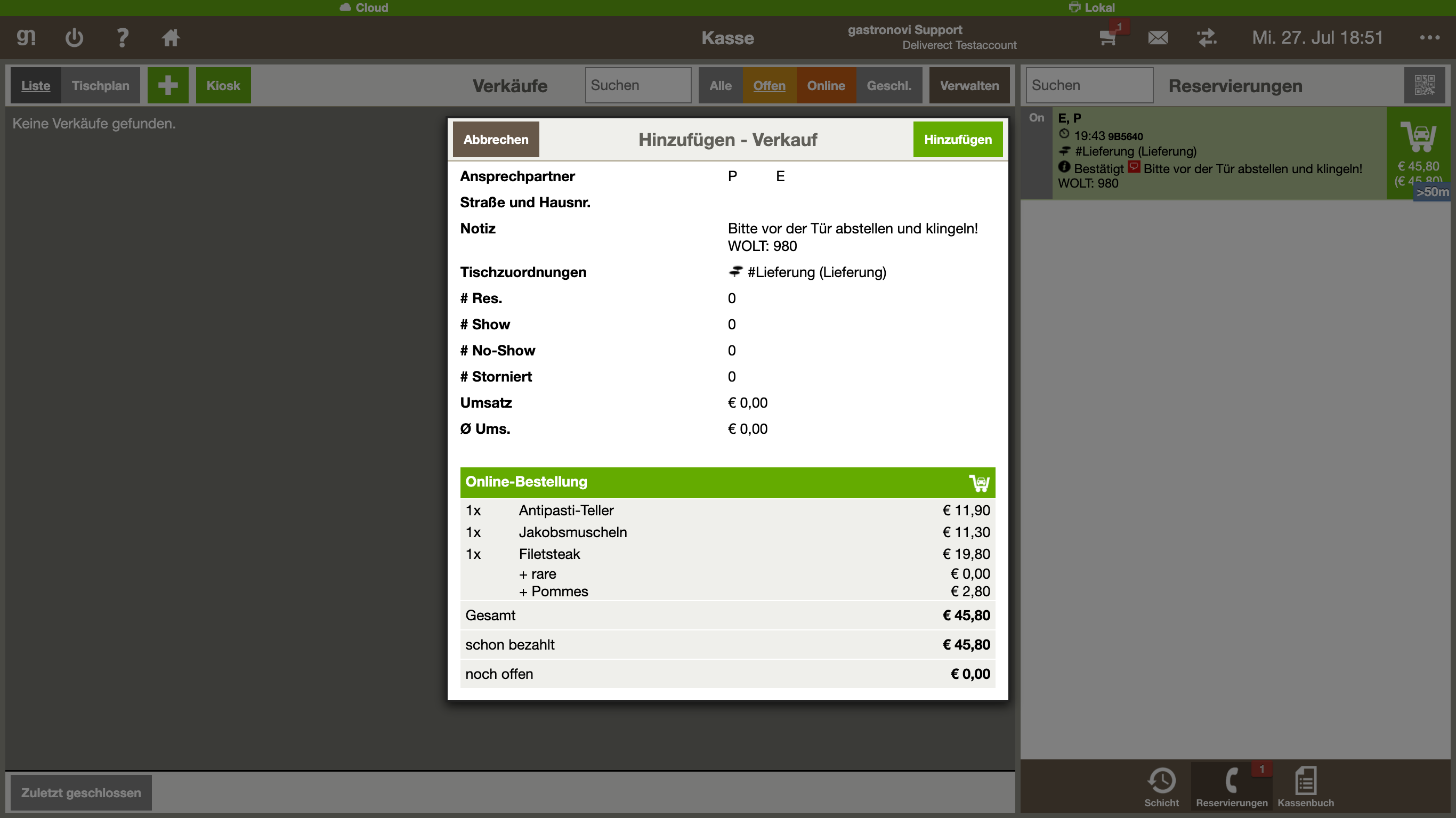
Reservations

In the reservation view of the Cash Register, you’ll find a note in the reservation details regarding the delivery service—in this case, Wolt—and the corresponding order number.

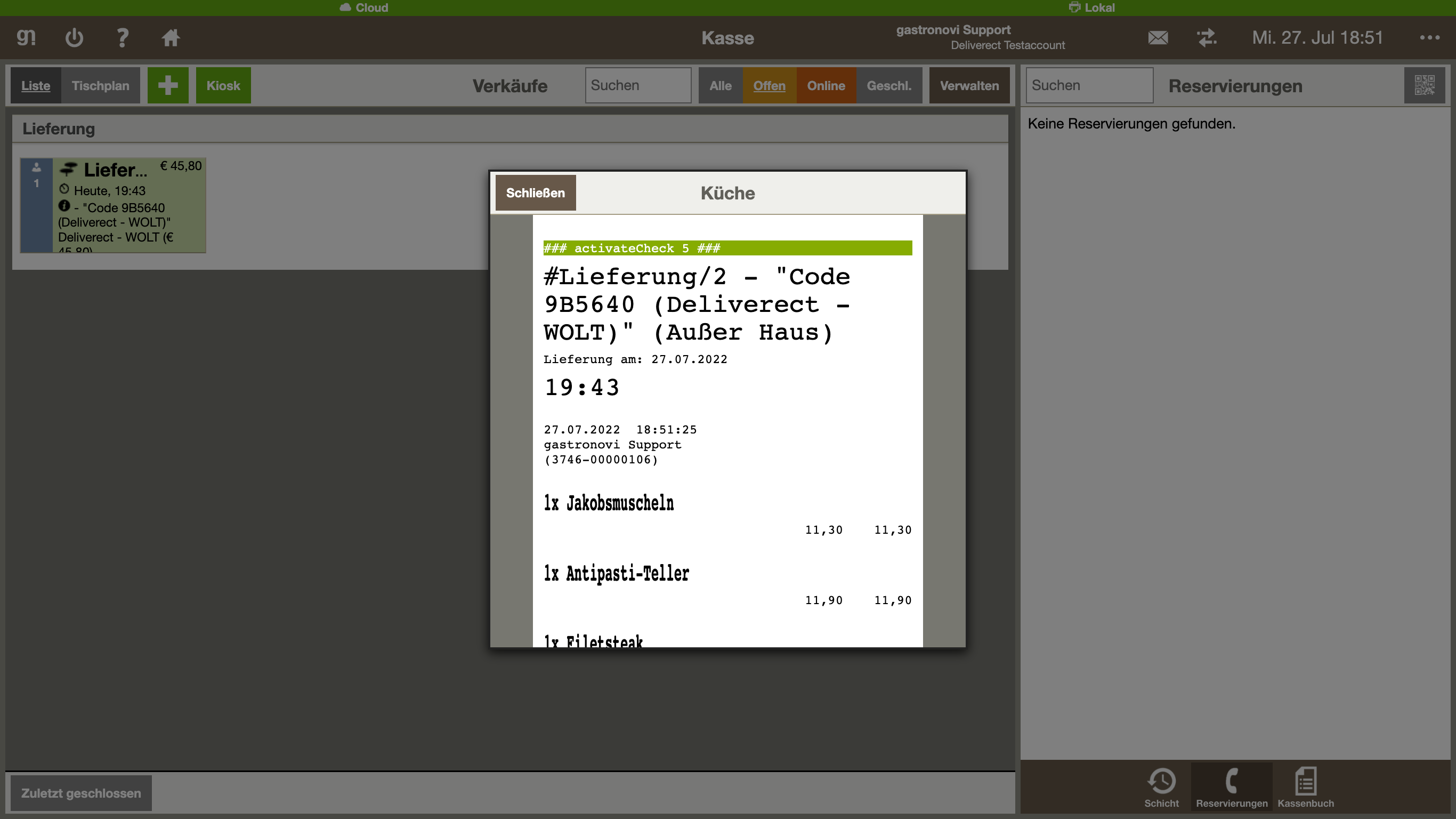
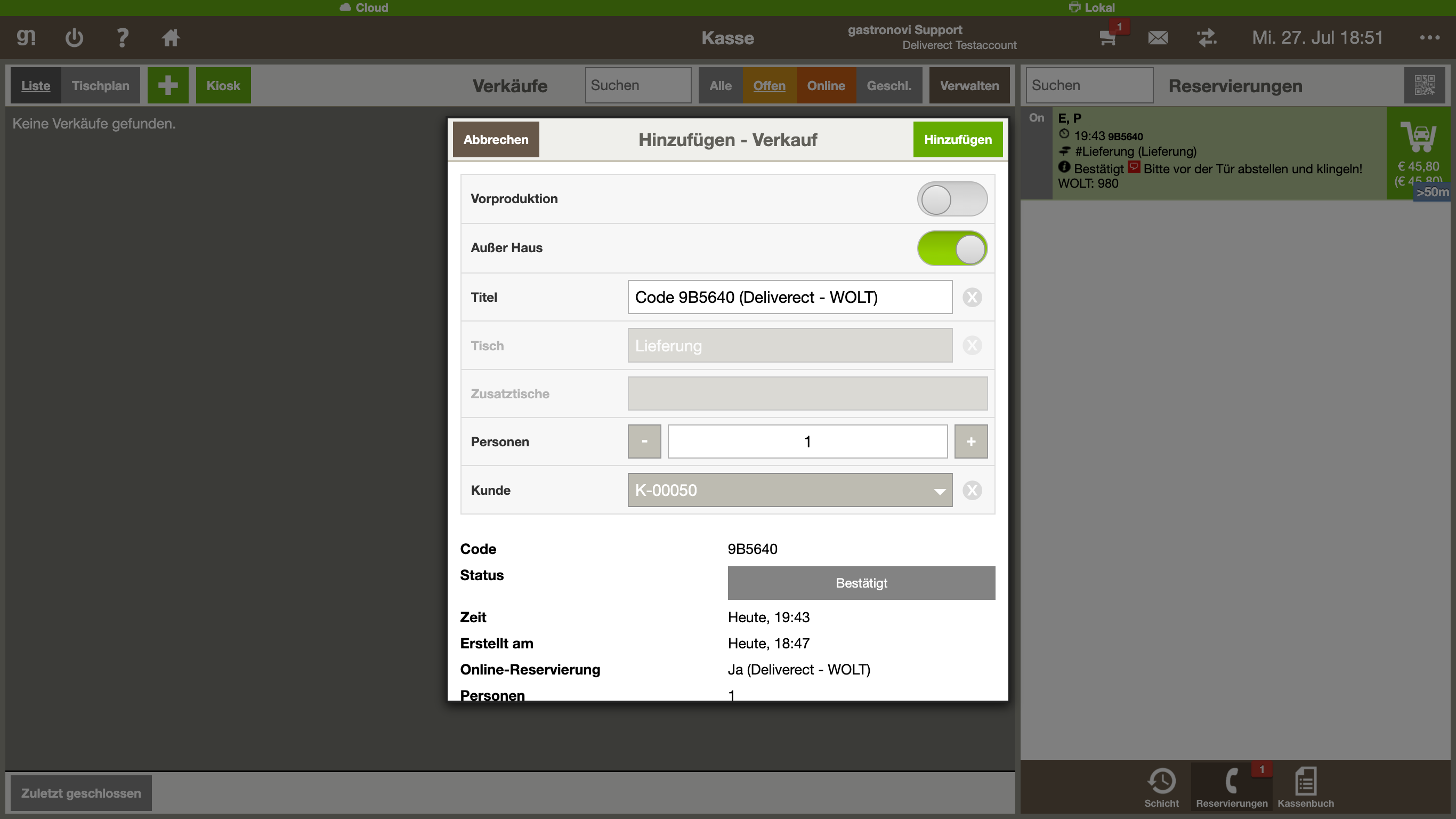
Add

When adding a sale in the POS, the title will indicate that it is a Deliverect order and which delivery service is involved—in this case, Wolt. In the reservation notes, you’ll find the delivery platform and the corresponding order number listed again.

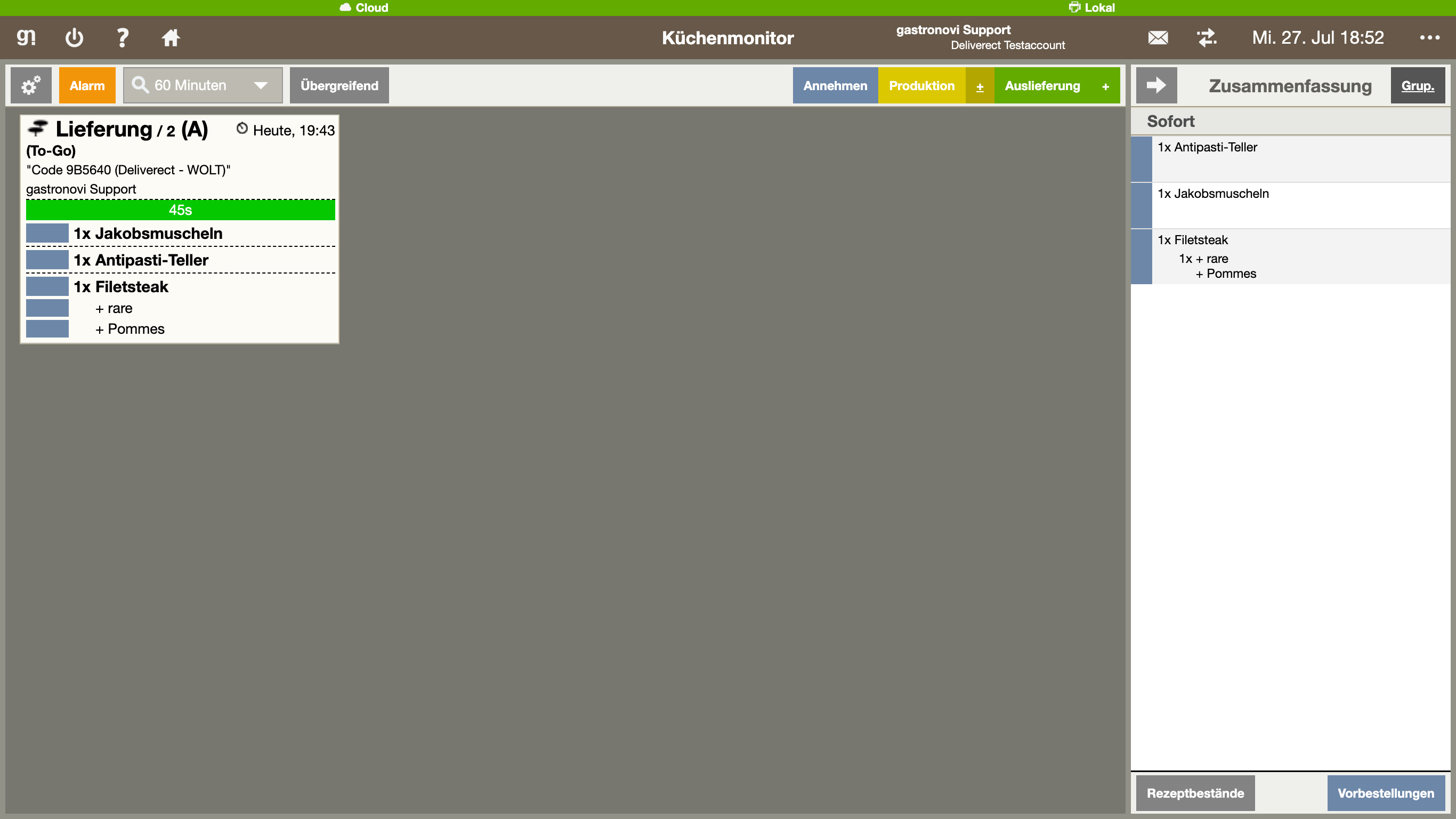
Production Slip

After the transaction is submitted, the production slip is printed. In the title, you’ll see that it’s a Deliverect order, along with the corresponding delivery platform.

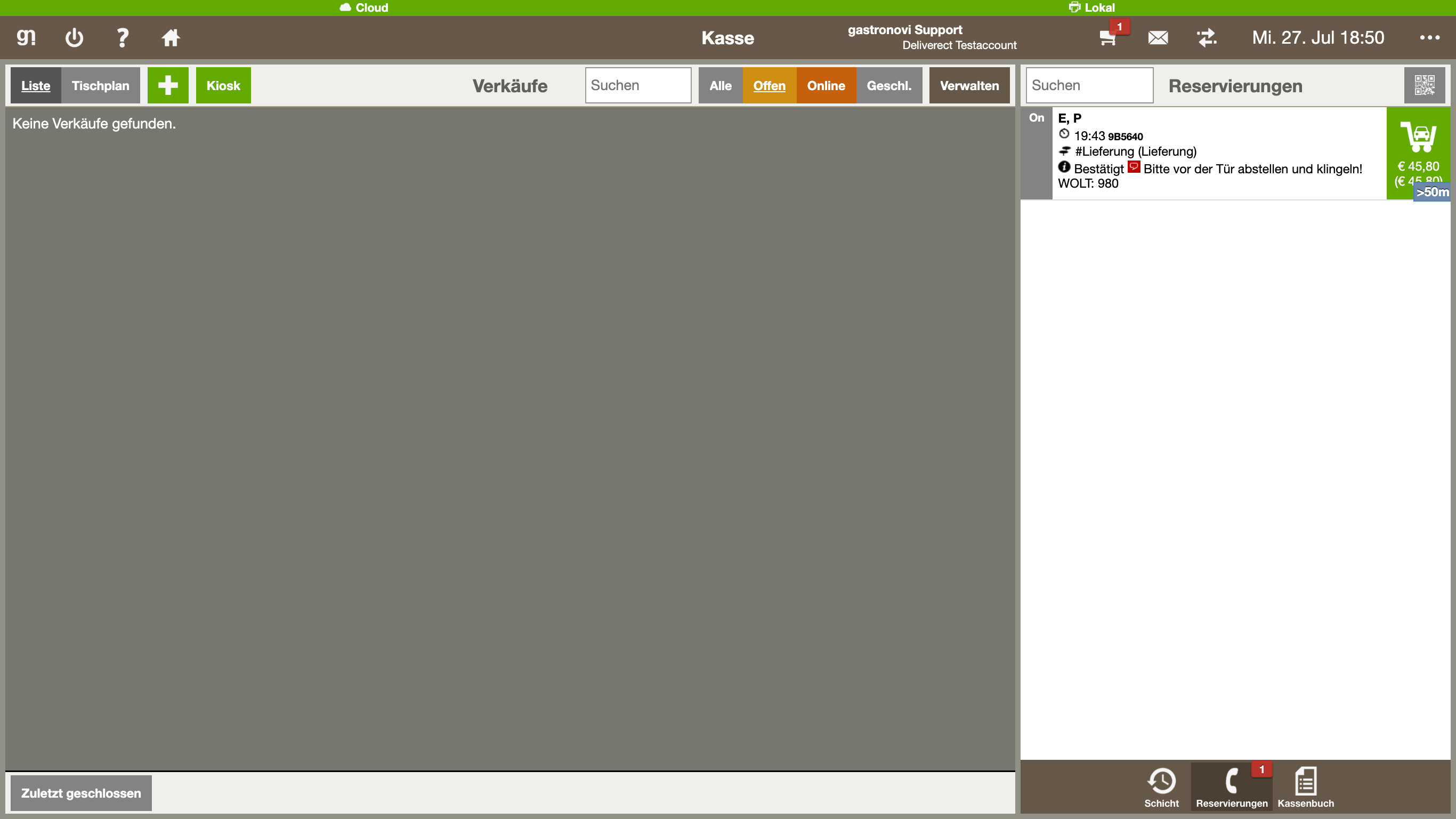
Kitchen Monitor

Just like on the printed production slip, you’ll also find the information mentioned above on the kitchen monitor.


You can find further information in the Deliverect Support Portal .

Please note that the English translation is currently under construction.
The Support-Portal makes no claim to completeness. Design and specifications are subject to change without notice.

These contents were translated by machine.